
Linux commands are necessity of working with Linux Based system. We will discuss Linux Commands you should know in 2026 to become a Software Developer, Devops Engineer , or system administrator.. Understanding basic Linux commands helps you to navigate the system , manage files, set permissions and work efficiently from the terminal.
Learn more about Linux on wikipedia
In this blog, we’ll cover essential Linux commands every beginner must know, explained in simple language with examples.
File and Folder management commands
we used below commands for creating, deleting, moving, and navigating files and directories.
Navigation Commands
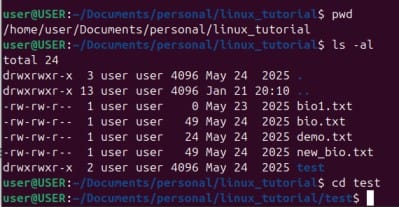
- pwd => print current directory
- ls => list files and folders in the current folder
- ls -l => detailed list files and folders in the current folder
- ls -a => show hidden files also.
- cd folder_name => cd command stands for change directory. By executing the command we move into the directory
File and Folder Creation
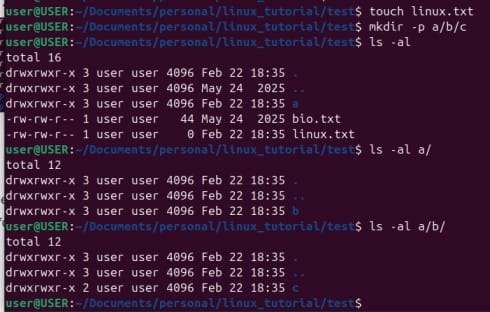
- touch file_name.txt => touch command use to create file.
- mkdir folder => mkdir stands for make directory. It creates a new folder.
- mkdir -p a/b/c => using -p parameter , we can create nested folder
Delete Files and folders
- rm file.txt => rm stands for remove. It deletes specific file.
- rm -r foldername => delete folder
- rmdir emptyfolder => delete empty folder
Copy and Move
- cp file1 file2 => cp stands for copy. It copy file1 contents to file2
- cp -r folder1 folder2 => Using -r parameter we can copy folder1 to folder2 l
- mv oldname newname => mv stands for move. Here it’s used to rename file or folder name.
- mv file.txt /path/ => Here mv used to cut file to specific path.
File viewing and reading Linux commands
Below commands are used to read and inspect file contents.
- cat file.txt => display content
- less file.txt => scroll view
- more file.txt => page view
- head file.txt => display first 10 lines
- tail file.txt => display last 10 lines
- tail -f log.txt => live log view
File Permission & Ownership Commands
Linux uses permissions to control file access. Permission means read(r), write(w), and execute (x).
Permission commands
- chmod 755 script.sh
- chmod +x script.sh
Ownership commands
- chown user file.txt
- chown user:group file.txt
User & Group Management Commands
- whoami => current user
- who => logged-in users
- id => user ID info
- adduser username => add user to system
- passwd username => change password
Process Management Commands
We Used to monitor and control running programs.
- ps => running processes
- ps aux => display all processes
- top => live process view
- htop => advanced monitor
- kill PID => stop process
- kill -9 PID => forcefully stop a process
SSH & Remote Access Commands
Used to connect and work on remote Linux servers.
- ssh user@server_ip => to connect server using ssh
- ssh -p 22 user@server_ip => -p parameter supports port
- exit => execute exit command to exit from the server
Secure File Transfer
If you are logged into one Linux server and need to transfer a file to another remote server, you can use the scp (Secure Copy) command. The scp command allows you to securely transfer files between systems over SSH.
scp file.txt username@remote_server_ip:/destination/path/Example
scp report.pdf user@192.168.1.10:/home/user/This command will perform below operations,
- Copy
report.pdf - From the current server
- To the
/home/user/directory - On the remote server (
192.168.1.10) - Using the specified username
Disk and Memory commands
When working on a Linux server, monitoring disk space, folder size, memory usage, and system uptime is very important. These commands help you quickly check system health and troubleshoot issues.
- df -h => Shows disk space usage of all mounted file systems. -h stands for human readable.
- du -sh folder_name => Calculates the total size of a specific folder. -s stands for summary ( shows total size )
- free -m => Display RAM usage details. -m flag shows in MB ( Megabytes )
- uptime => Shows how long the system has been running since last reboot.
Conclusion
Learning Linux commands category-wise gives you a structured understanding of the operating system. Instead of memorizing commands randomly, you learn what to use and when, which is exactly what interviewers and real projects expect.
Explore more Linux tutorials, interview questions, and coding guides on
🔗 https://techinterviewhub.in/